Optimize Your Workspace

Educational guidance on arranging your computer workspace for ergonomic awareness and comfort

5 Setup Areas
Practical Guides
Easy to Apply
01

Monitor Placement and Viewing

Monitor positioning significantly influences head and neck posture during computer work. Proper screen placement can support more comfortable viewing angles.

Height and Distance Guidelines

A commonly cited guideline suggests placing the top of the monitor at or slightly below eye level when seated upright. The rationale is that this positioning may allow viewing the screen with minimal neck flexion or extension.

Screen Distance

Typically 20-28 inches (arm's length), adjusted based on screen size and visual acuity

Viewing Angle

Many people find a slight downward gaze (10-20 degrees) comfortable for sustained viewing

Eye Level

Top of screen at or slightly below eye height when sitting with neutral posture

Individual Variations

However, individual preferences vary based on:

  • Monitor size (larger screens may benefit from lower positioning)
  • Vision correction type (bifocal or progressive lens users may prefer different heights)
  • Task type (reading-intensive vs. graphics work)
  • Personal comfort and viewing habits

Multiple Monitor Considerations

For setups with two or more monitors, placement depends on usage patterns:

  • Position primary monitor directly in front with most frequently used screen
  • Angle secondary monitors slightly inward, consider which is accessed more often
  • For equal use, center the gap between monitors directly in front
  • Minimize setups requiring sustained rotation of head or torso

Screen Settings Matter

Beyond physical placement, adjust brightness to match ambient lighting, set contrast high enough for clear text, increase text size to read comfortably without leaning forward, and consider blue light filters for evening use based on personal preference.
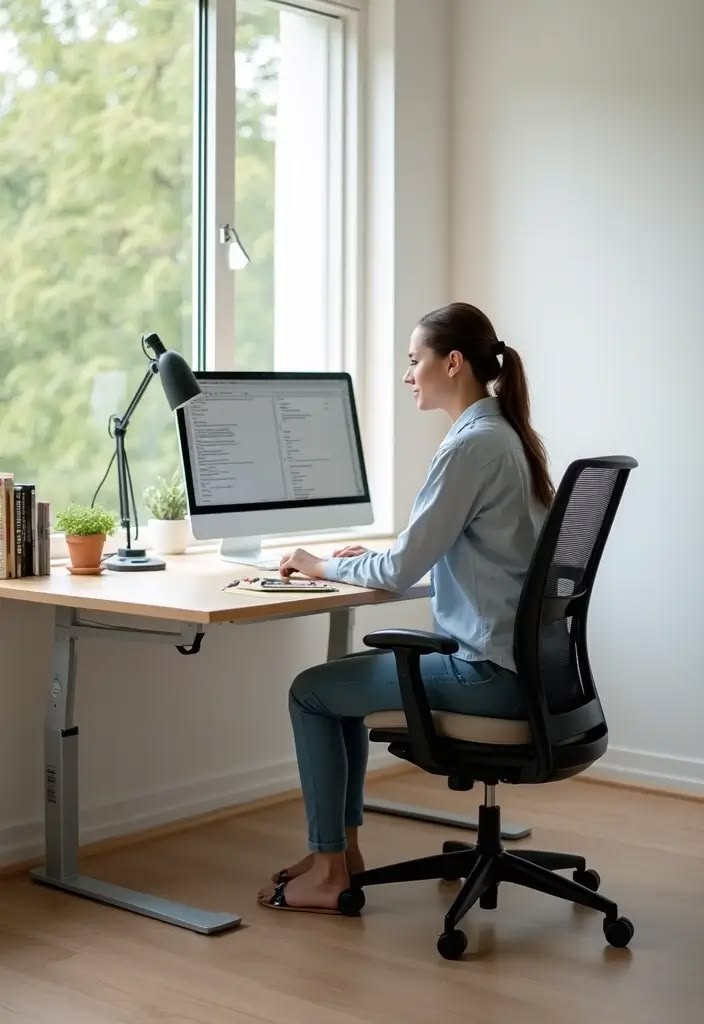
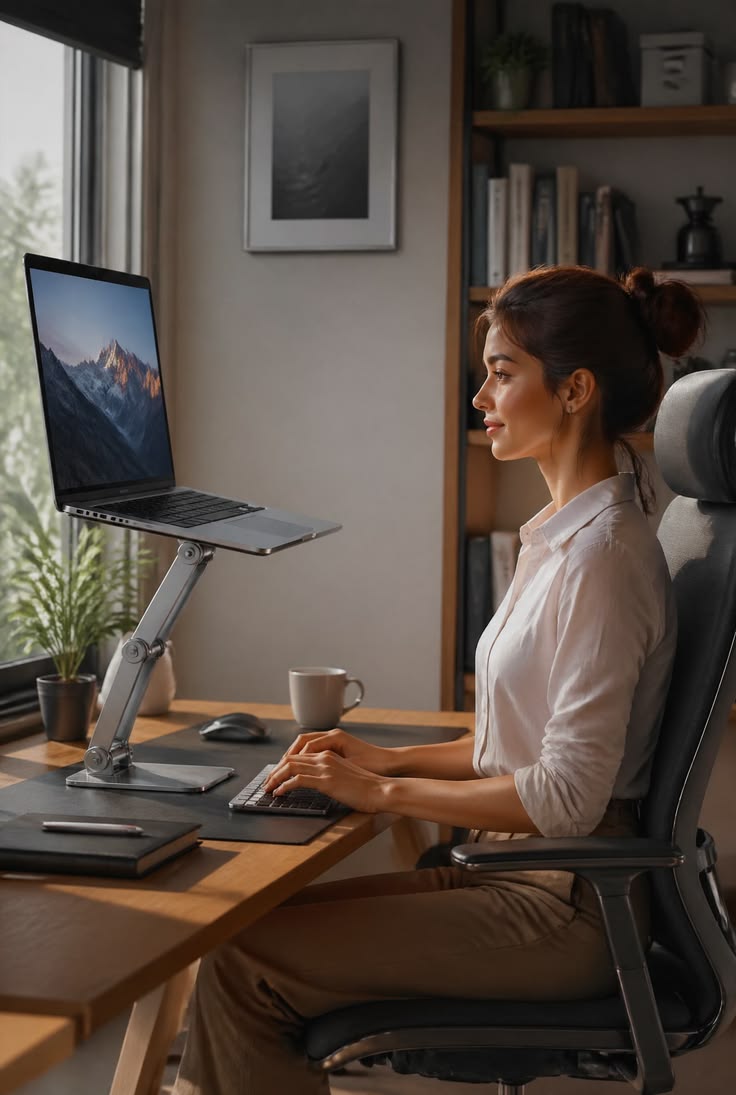
Diagram illustrating proper monitor height and distance with measurements and viewing angles for ergonomic computer setup
Proper monitor positioning reference
02

Chair Selection and Adjustment

A supportive, adjustable chair is often considered central to workstation ergonomics. Understanding key features and adjustments helps optimize seating comfort.

Essential Chair Adjustments

Seat Height

Proper seat height allows feet to rest flat on the floor (or footrest) with thighs approximately parallel to the ground. This positioning distributes weight evenly and reduces pressure on the backs of thighs.

Issue: If chair is too high, feet dangle and pressure concentrates under thighs. Too low, and knees rise above hips, which can round the lower back.

Lumbar Support

Adjustable lumbar support helps maintain the natural inward curve of the lower back. The support should contact the lower back at the belt line level. Some chairs offer both depth and height adjustment for the lumbar mechanism.

Seat Depth

When sitting back in the chair, there should be approximately 2-4 inches of space between the back of your knees and the seat edge. This prevents pressure on the backs of knees while allowing you to use the backrest.

Armrests

Armrests should support forearms with shoulders relaxed (not hunched upward). Height, width, and sometimes angle adjustments allow customization. Some people prefer working without armrests depending on desk setup and task type.

Chair Type Considerations

Task Chair

Standard office chair with basic adjustments. Suitable for many users. Look for models with good lumbar support and seat depth that matches your leg length.

Ergonomic Chair

Advanced adjustability and support features. May include synchro-tilt, adjustable lumbar, and multiple dimensional adjustments. Higher cost but more customization.

Alternative Seating

Kneeling chairs, balance balls, or saddle seats offer different approaches. Generally best used intermittently rather than for full-day sitting.

Annotated photo showing proper ergonomic office chair adjustments including seat height, lumbar support, and armrest positioning
Chair adjustment key points
03

Desk Height and Organization

Desk characteristics affect arm and wrist positioning, as well as overall workflow efficiency

Desk Height Guidelines

Standard desk height is typically 28-30 inches, which works for people of average height. Proper desk height allows:

  • Elbows at approximately 90-degree angle when hands are on keyboard
  • Forearms parallel to floor or sloping slightly downward
  • Shoulders relaxed, not elevated or hunched
  • Wrists in neutral position (not bent up, down, or to the side)
Height Mismatch Solutions:

If desk is too high: raise chair height and use a footrest

If desk is too low: use desk risers or consider an adjustable-height desk

Workspace Organization

How you arrange items on your desk affects reaching patterns and movement efficiency:

Primary Zone

Items used constantly (keyboard, mouse, primary documents) within easy reach without extending arm

Secondary Zone

Items used regularly (phone, reference materials, supplies) accessible with slight reach or lean

Tertiary Zone

Items used occasionally (files, books) can be placed further away, requiring standing or significant reach

Standing Desks

Adjustable-height or standing desks allow position variation throughout the day. Key considerations:

Gradual Transition: Start with short standing periods and increase over time

Anti-Fatigue Mat: Can reduce strain on feet and legs during standing

Proper Height: Elbows still at 90 degrees, monitor at appropriate eye level

Movement: Standing still isn't necessarily better than sitting; shift weight and move

04

Keyboard and Mouse Positioning

Input device placement and type significantly affect upper extremity positioning and comfort

Keyboard Placement

The keyboard should be positioned to allow relaxed shoulder and arm position:

Directly in Front

Centered with your body to avoid twisted posture

Close to Body

Approximately 4-6 inches from desk edge so you don't have to reach forward

Flat or Slight Negative Tilt

Many ergonomists suggest avoiding pop-up feet that tilt keyboard upward

Wrist Position

Hands should float above keyboard, not resting on wrist rest while typing

Keyboard Type Considerations

Standard

Traditional straight design. Consider compact versions (without number pad) if you rarely use it

Split

Allows each hand positioned more naturally with less inward rotation at wrist

Vertical/Tented

Hands at angle between palm-down and thumbs-up. May reduce forearm rotation strain

Mouse Setup

Mouse position and type influence shoulder, arm, and wrist posture:

Position Guidelines

  • Place mouse immediately beside keyboard at same height
  • Keep within easy reach - avoid extended reaching to the side
  • For heavy mouse use, consider switching hands periodically
  • Use keyboard shortcuts when possible to reduce mouse use

Mouse Alternatives

Vertical Mouse

Hand in "handshake" position, may reduce forearm rotation strain

Trackball

Stationary device using thumb or fingers, reduces shoulder movement

Touchpad

Compact, requires finger movement rather than whole arm

05

Lighting and Environment

Lighting affects visual comfort and can influence posture (leaning forward to see better)

General Illumination

Overall workspace lighting should be adequate for tasks without being harsh:

  • Avoid positioning monitors directly in front of or behind windows
  • Use blinds or curtains to control glare from natural light
  • Overhead lighting should illuminate work area without creating screen glare
  • Consider desk lamp for task lighting on documents or keyboard

Screen Glare Reduction

Strategies to minimize reflections and glare:

  • Position monitor perpendicular to windows
  • Use matte screen protectors if needed
  • Ensure overhead lights don't reflect in screen
  • Adjust screen angle to minimize reflections

Temperature & Air Quality

Environmental factors affecting comfort:

  • Comfort temperature varies individually; 68-74°F is common range
  • Very dry air can irritate eyes; humidifiers may help
  • Ensure adequate ventilation
  • Plants may improve air quality

Noise Management

Sound environment considerations:

  • Excessive noise can cause tension
  • Consider noise-canceling options if needed
  • Background music preferences vary individually
  • Quiet zones may benefit concentration

Individual Variation Notice

These guidelines represent general principles based on ergonomic research and common practices. Individual needs vary based on body dimensions, flexibility, vision, existing conditions, and personal preferences. What works well for one person may not work for another. This information is educational only and does not replace professional ergonomic assessment or medical advice.